Timeline Slicing & Cutting
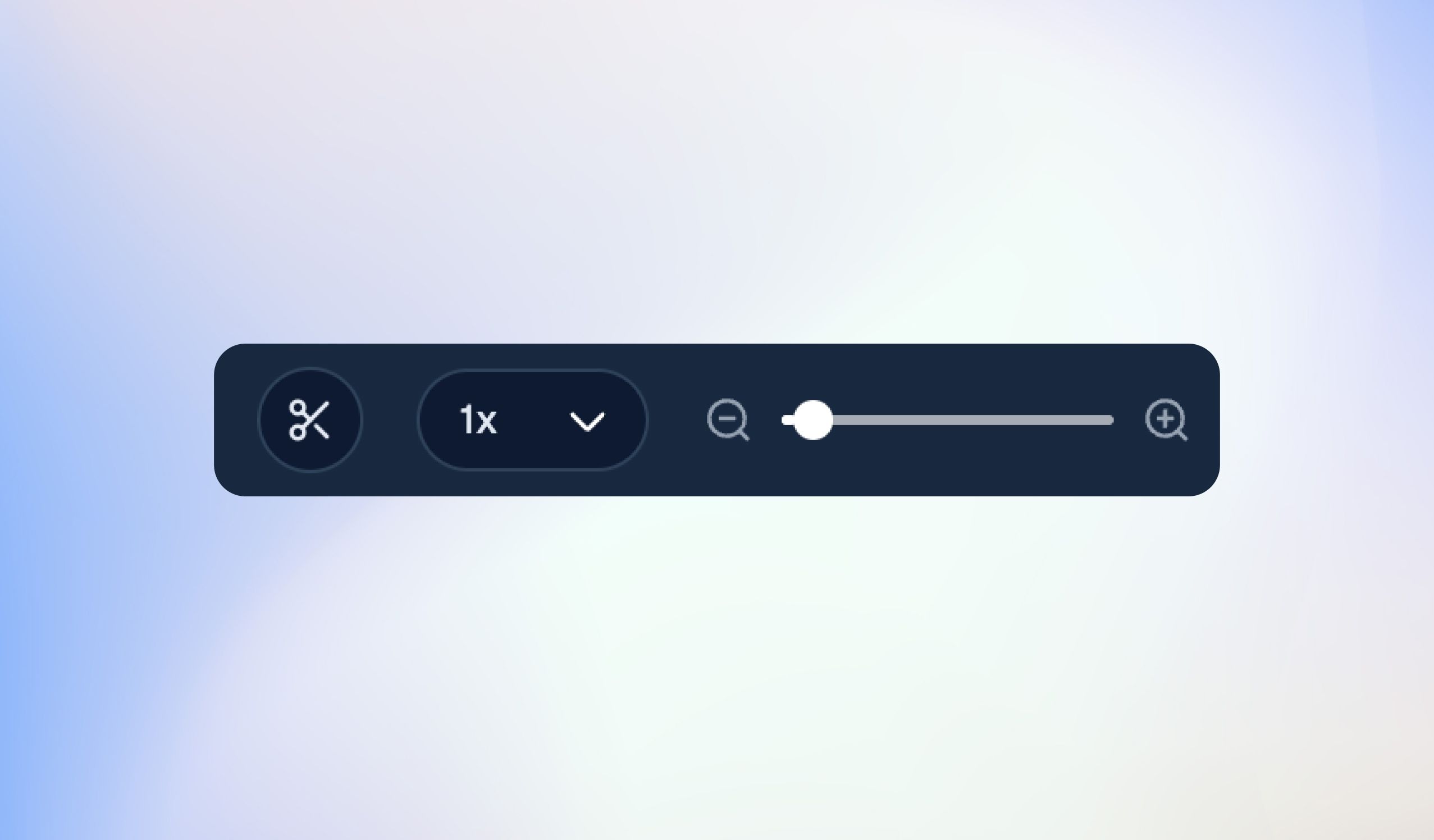
Making quick cuts to your video clips just became faster and more intuitive! We’ve added a dedicated Slice Tool directly to the Editor timeline, giving you total control over how you split and trim your footage.
What's new?
Dedicated Slice Tool: Click the new scissor icon above the timeline to slice your video and audio clips precisely where your playhead is positioned.
Keyboard Shortcut: Speed up your workflow with the Option + Click shortcut to instantly cut clips on the fly.
Faster Trimming: Split long takes, remove unwanted pauses, or isolate specific moments without breaking your editing flow.
How to use it
Open your project in the Editor.
Move the playhead to the exact point in the timeline you want to cut.
Click the Scissors icon above the timeline toolbar (or hold Option and click on the timeline track).