
Changelog

Follow new updates and improvements to Choppity.

Brand Template Wizard
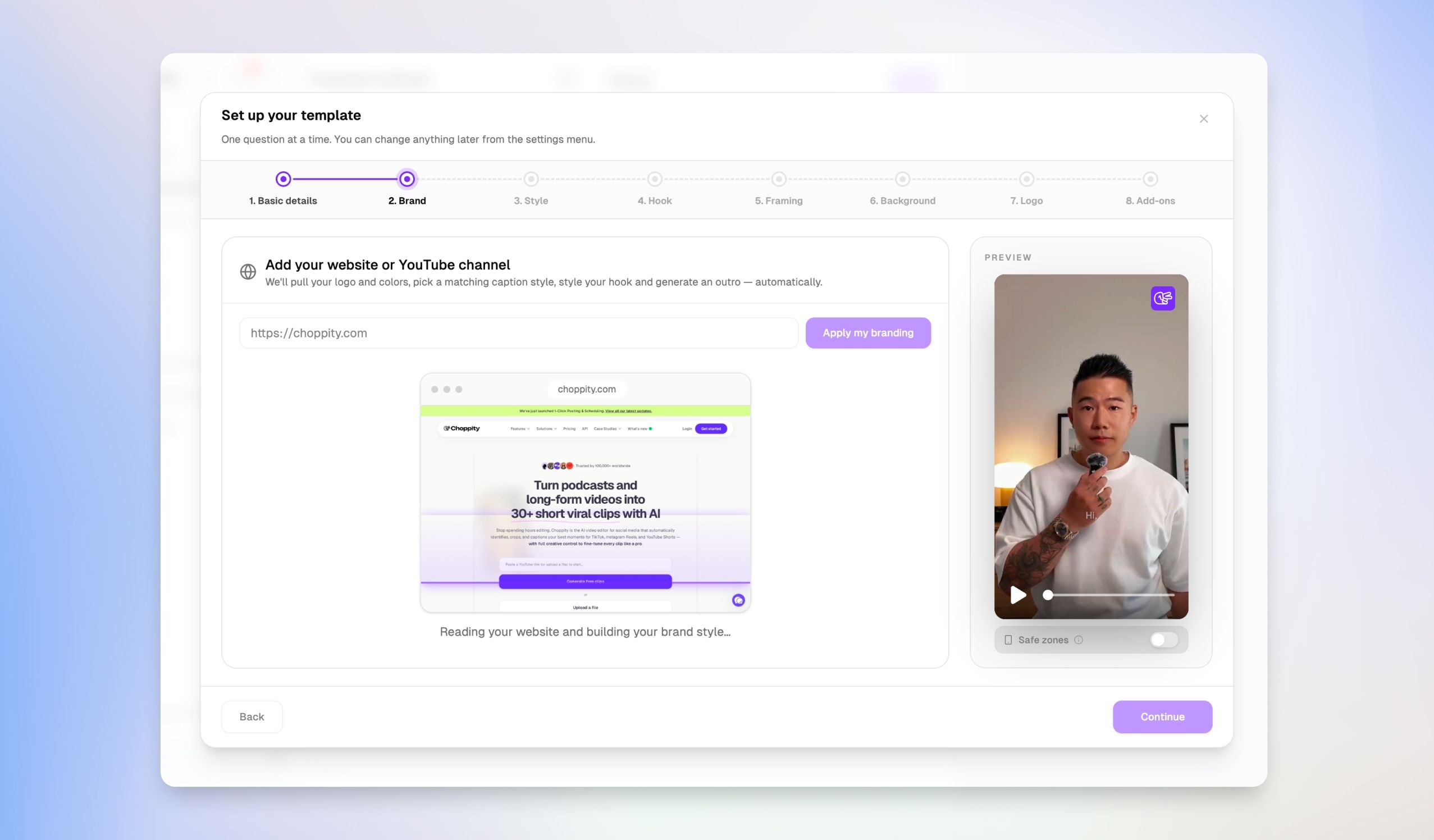
Setting up your brand identity and video styles just got effortless! We’re excited to introduce the Brand Template Wizard, a step-by-step guided experience designed to help you create, manage, and visualize your templates with total clarity.

What's new?

  • Guided Step-by-Step Experience: Easily configure your template details, framing, hook, background, logo, and add-ons through a simple 8-step wizard.

  • Real-time Preview: See exactly what your clips will look like as you customize your settings with an interactive side-by-side preview window.

  • Auto-Extract Brand Assets: Simply enter your website URL or YouTube channel link, and we'll automatically fetch your logo, brand colors, caption styles, hook formatting, and audience details for future AI features.

  • Simplified Management: Fine-tune your overall brand assets, target audience description, and palette from a single centralized workspace.

How to use it

  1. Go to Brand template in the left sidemenu.

  2. Click Start template wizard (or select Go next to your active template).

  3. Paste your website or YouTube channel link to automatically apply your branding, or step through the wizard to customize your setup manually!
Instant Timeline Scrubbing with Live Preview

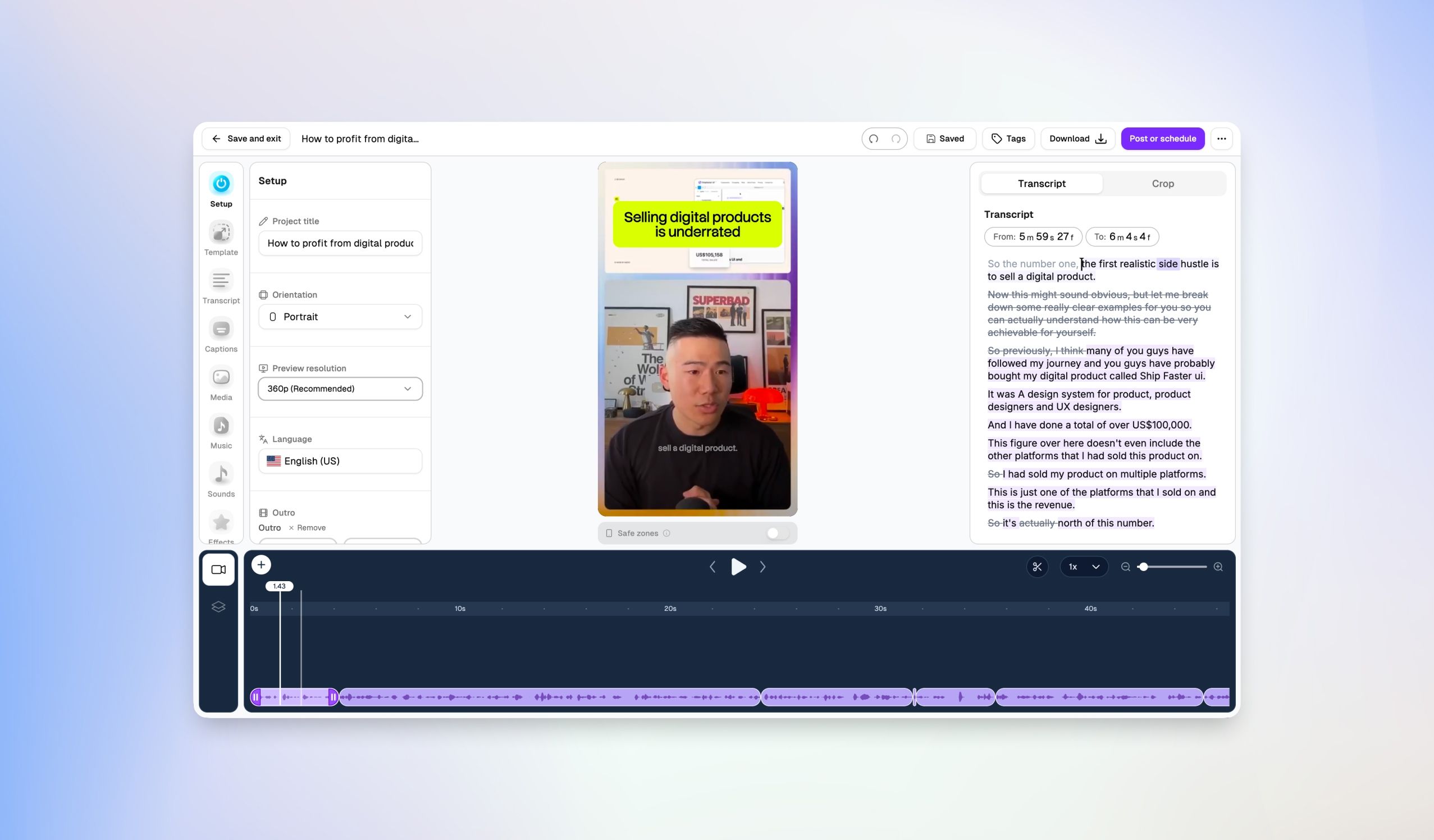
Navigating through your video footage is now faster than ever! We’ve introduced Instant Live Scrub Preview, allowing you to inspect any frame in real-time simply by hovering over the timeline.

What's new?

  • Hover-to-Preview: Move your mouse anywhere across the timeline track to instantly preview that exact frame in the main viewer window.

  • Faster Scrubbing: Scan through long video projects effortlessly to pinpoint specific scenes, cuts, or visual details without needing to click or drag the playhead manually.

  • Seamless Navigation: Experience zero-lag visual feedback while scrubbing, giving you a smoother and more fluid editing experience.

How to use it

  1. Open any video project in the Editor.

  2. Hover your cursor over any section of the timeline track.

  3. Watch the preview player update instantly as you move your mouse back and forth across your video.

Timeline Slicing & Cutting

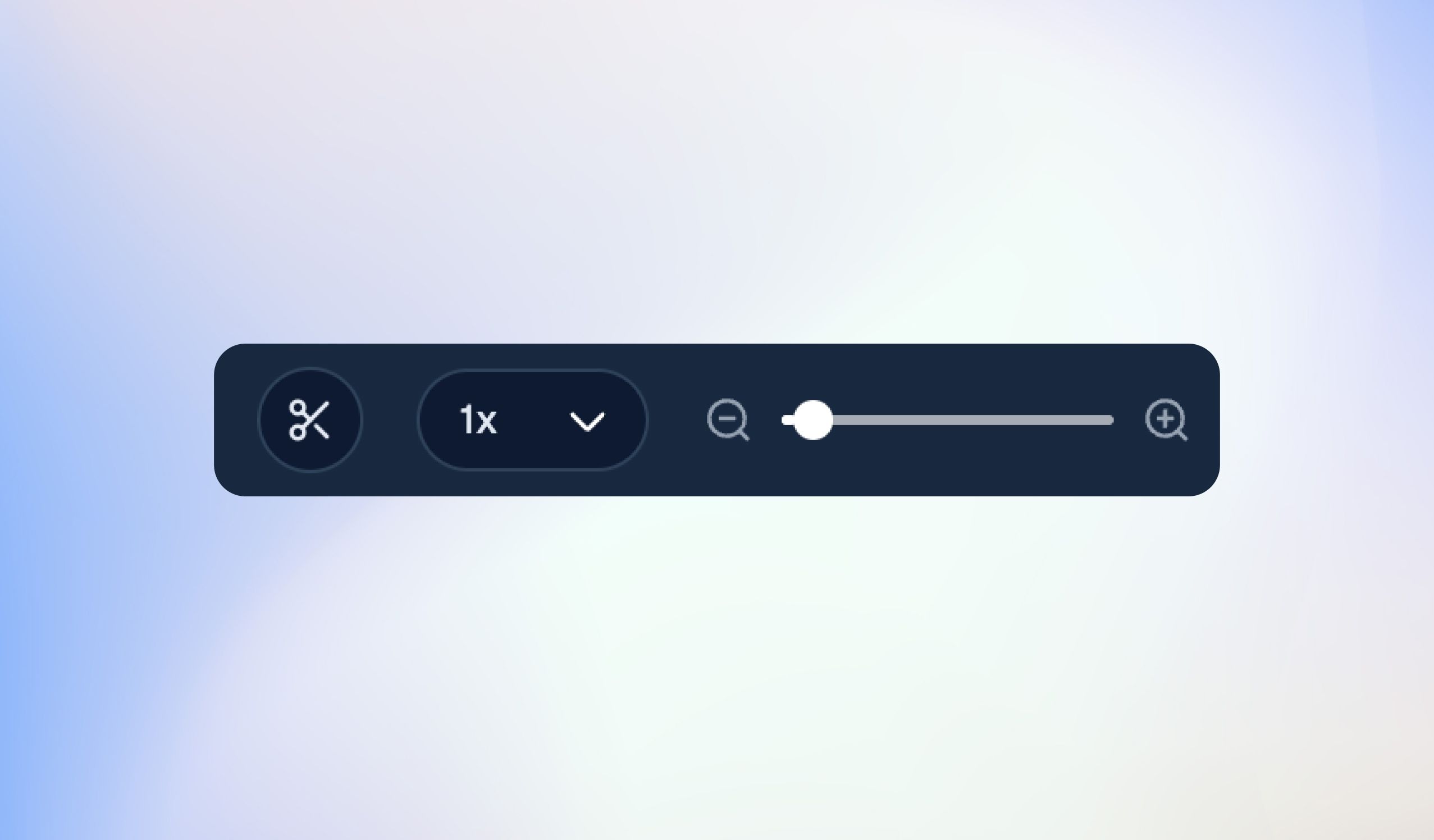
Making quick cuts to your video clips just became faster and more intuitive! We’ve added a dedicated Slice Tool directly to the Editor timeline, giving you total control over how you split and trim your footage.

What's new?

  • Dedicated Slice Tool: Click the new scissor icon above the timeline to slice your video and audio clips precisely where your playhead is positioned.

  • Keyboard Shortcut: Speed up your workflow with the Option + Click shortcut to instantly cut clips on the fly.

  • Faster Trimming: Split long takes, remove unwanted pauses, or isolate specific moments without breaking your editing flow.

How to use it

  1. Open your project in the Editor.

  2. Move the playhead to the exact point in the timeline you want to cut.

  3. Click the Scissors icon above the timeline toolbar (or hold Option and click on the timeline track).

Earlier updates